Endoscope Camera / USB OTG
- 3.5
- Rating
- 100.00K
- Installs
- Free
- Price
 Analysis by App-foxy
I approached Endoscope Camera / USB OTG as a practical tool rather than a camera app. Its main job is simple: help an Android phone communicate with an external endoscope, USB camera, or borescope. That single capability matters because a phone camera can only show what is in front of its own lens, while a small wired camera can reach behind, below, or inside places that would otherwise be difficult to inspect.
In my experience, the app makes the most sense for people who already have compatible USB inspection hardware and want a straightforward way to view its feed on a phone. It is free, aimed at Everyone, and belongs to the Libraries & Demo section, although its usefulness is much more practical than that label might suggest. Shadow soft keeps the concept focused: connect the accessory, open the app, and use the phone as the viewing screen.
The important point is that this is a connection tool, not a replacement for the camera hardware. If you do not own an endoscope or USB camera, installing the app alone will not turn your phone into one. The value comes from the combination of the application, a compatible cable or adapter, and the external camera itself.
You May Also Like

 Blood Strike: 2.5 Anniversary
Blood Strike’s Loadouts Turn Every Drop Into a Tactical Gamble
A close look at Blood Strike’s custom loadouts: how fast access to signature weapons reshapes its battle royale rhythm, rewards preparation, and narrows the gap between fights.

 Pandora - Music & Podcasts
Pandora’s Music Is Easy to Start, but Harder to Recover
Pandora’s strength is its low-effort path from a seed to a station. Its weak spot is how much confidence it asks you to place in connection, setup, and quiet recovery.

 8 Ball Pool
 Is Built on Rivalries, Rematches, and Routine
A close look at the rivalries, rematches, shared routines, and unanswered safety questions that turn a quick pool match into a persistent mobile community.

 Samsung Music
’s Quiet Strength Is Playing What You Already Own
Its reach comes less from spectacle than from dependable access to a personal library. That simplicity is both the app’s strongest retention engine and its ceiling.

 AccuWeather: Weather Radar
AccuWeather Review: A Quick, Clear Forecast for Everyday Decisions
For everyday plans, the best forecast is the one you can understand quickly. AccuWeather makes rain timing, radar, and local conditions easy to act on, with a few trade-offs.

 Hill Climb Racing
Why Hill Climb Racing Still Turns Crashes Into One More Run
A tiny car, a bumpy hill and one more upgrade: Hill Climb Racing keeps resurfacing because its simple chaos makes every near-miss feel personal.
More From Our News Desk



Putting the USB camera connection to work
I find that a USB inspection setup is most useful when I plan the connection before I reach into a cramped or awkward spot. A quick check on a clear surface helps me confirm the camera is recognized and learn how its view responds to movement, so I can spend the inspection time looking rather than troubleshooting. Next, I’d consider how that wired workflow fits the places and tasks where I’d actually use it.
What the central capability changes
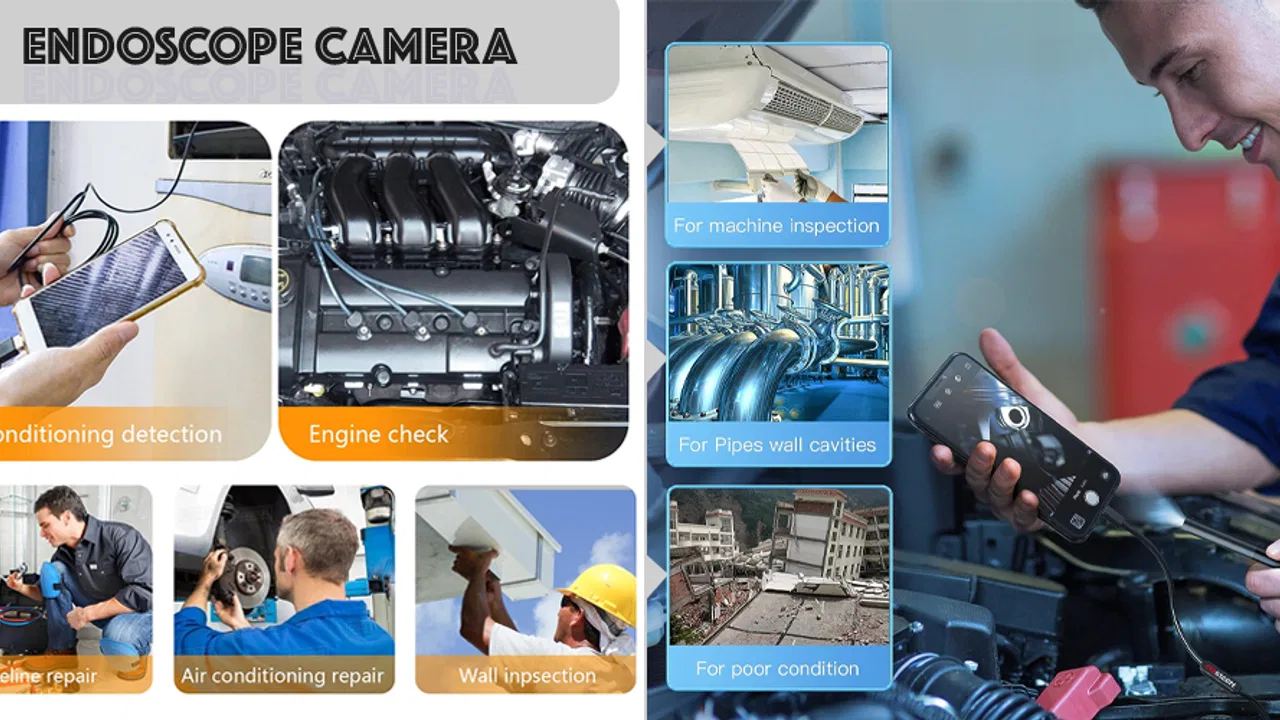
The strongest part of this app is the way it changes the physical reach of a phone. A normal mobile camera is excellent for open scenes, documents, people, and objects that can be placed in front of it. An endoscope camera is useful for narrow or awkward spaces: the gap behind furniture, the inside of a pipe, a recessed area in a machine, or a hard-to-see corner during a household repair.
That distinction is easy to underestimate until a real problem appears. I can point a phone at a leaking area, but I may not be able to see the source if the relevant part is hidden behind a panel. With a flexible inspection camera connected through USB OTG, the phone becomes a live monitor while the camera reaches the location. The app’s role is modest, but it is the part that lets the phone display that external view.
This also makes the application more useful than a generic camera utility for this particular task. A standard camera app is designed around the phone’s built-in lens and may not recognize an attached inspection camera at all. Endoscope Camera / USB OTG is built around the external-camera workflow, so the user starts with the right purpose instead of trying to force a regular camera app to understand unfamiliar hardware.
What I would prepare before opening it
The smoothest experience begins before the app launches. I would first check that the phone supports USB OTG, then identify the connector used by both the phone and the inspection camera. Depending on the equipment, that may involve a direct connection or an adapter. A loose connection can look like an application problem even when the real issue is simply that the phone is not receiving a stable signal.
I would also inspect the camera cable and the available space before starting an inspection. A flexible probe is easier to position when the phone is held somewhere secure, and the screen is easier to read when the device is not dangling from the cable. These are small practical details, but they affect the usefulness of the live view more than the app interface does.
Once the external camera is connected, I would open the application and give it a moment to recognize the accessory. If the image does not appear, my first checks would be the OTG adapter, the physical connection, and whether the phone is compatible with the attached device. Repeatedly reopening the app without checking the cable usually wastes time. The app can display a camera feed only when the phone and hardware are communicating properly.
How it feels during a real inspection
The practical workflow is direct: connect the camera, launch the app, and use the phone screen to guide the probe. That simplicity is a strength when I am standing beside a cupboard, appliance, or workbench and want to inspect something without learning a complicated interface. The screen becomes a live reference while I move the camera slowly through the space.
Slow movement is especially important. A tiny camera at the end of a cable can make a scene feel unfamiliar because the image changes dramatically with every twist. I get better results by moving a few centimeters at a time, pausing to understand the view, and using a separate light source when the area is too dark. The application can show what the camera sees, but it cannot compensate for poor positioning or an inspection area with no usable light.
This is one of the app’s less obvious trade-offs: the quality of the experience depends heavily on the connected camera. A sharper probe, better lighting, and a steadier cable can make the same application feel much more capable. Conversely, a low-quality accessory may produce a grainy or difficult image even though the connection itself works correctly. I would judge the complete setup, not the app in isolation.
A useful household example
Imagine that a small object has slipped beneath a heavy cabinet and you cannot see whether it is near the front, against the wall, or caught around a pipe. Moving the cabinet may be inconvenient or risky. With a USB endoscope connected to the phone, I can guide the probe into the gap and use the display to search from several angles. The phone stays outside the narrow space, where it is easier to hold and read.
The same approach can help when checking the underside of a sink, looking behind a washing machine, examining a cable route, or inspecting a hard-to-reach recess before attempting a repair. I would not treat the image as a professional diagnostic report, but it can answer a valuable first question: what is actually in there, and where should I look next?
That makes the app particularly helpful for avoiding unnecessary disassembly. Instead of removing several panels immediately, I can use the external camera to gather visual information first. Even when the final repair still requires tools or professional assistance, seeing the area beforehand can make the next step more informed.
Where the setup is less convincing
The app is not the right choice for someone expecting a wireless, instant camera experience. The central workflow depends on a physical USB connection, so the cable can limit movement and may become awkward in tight spaces. If I need to walk around freely, monitor a distant location, or inspect an area where a cable could snag, a wireless camera system may be more convenient.
It is also not ideal when the task requires dependable professional documentation. An external inspection camera can help me see a problem, but the phone display and connected hardware determine how clear and useful that view is. For detailed industrial inspection, medical use, plumbing diagnosis, or any situation where decisions carry serious consequences, I would choose equipment designed and approved for that specific purpose rather than relying on a general Android utility.
Another limitation is troubleshooting friction. When the image fails, several parts of the chain may be responsible: the phone, the OTG support, the adapter, the USB camera, the cable, or the connection itself. That is more complicated than opening the built-in camera. The app is convenient once the equipment works together, but it does not remove the compatibility questions that come with USB accessories.
How it compares with ordinary alternatives
The usual alternative is the phone’s built-in camera. That option is faster for open areas and requires no additional hardware, but it cannot physically reach around corners or into narrow gaps. For a quick photo of a visible object, I would use the normal camera. For a hidden space, this app paired with an endoscope is the more sensible tool.
Another alternative is a dedicated endoscope viewer supplied with a particular camera. A bundled viewer may be preferable when it is designed specifically for that accessory and offers a smoother match. On the other hand, a general app can be useful when I want one phone-based viewing method for compatible USB cameras rather than switching between several narrowly focused applications.
Wireless inspection cameras are a third option. They reduce cable restrictions and can be easier to position, but they introduce their own setup process and depend on the camera’s wireless connection. The USB approach used here feels more direct: connect the hardware and use the phone as the screen. I would choose it when a wired setup is acceptable and simplicity matters more than freedom of movement.
Small habits that improve the result
My first tip is to test the complete setup on a table before taking it into a cramped location. A short test confirms whether the phone recognizes the camera and gives me a chance to learn the image orientation. Discovering a connection problem while reaching behind an appliance is far more frustrating than discovering it beside a desk.
My second tip is to use the phone as a viewing station rather than holding it in the same hand that controls the probe. When possible, I place the phone on a stable surface or use a stand. This leaves one hand for the cable and one for the object or tool being inspected. It also reduces sudden movements that make the live image hard to interpret.
My third tip is to inspect in stages. I first locate the general area, then rotate or advance the probe gradually, and finally return to the most useful angle. This is more reliable than pushing the camera quickly and trying to remember what appeared on the screen. The app provides the view, but a deliberate inspection method makes that view much more informative.
I would also avoid treating a bright screen as proof that the camera is seeing clearly. Reflections, dust, moisture, and the probe’s own lighting can make a surface look different from reality. If the result affects a repair decision, I would confirm the finding from another angle and, where appropriate, ask someone with the right expertise to assess it.
Who gets the most value from it
In my view, the best audience is a practical Android user who already owns a USB endoscope, borescope, or compatible external camera and wants a simple viewing option. It can suit homeowners handling small maintenance checks, hobbyists examining models or mechanisms, technicians performing preliminary visual checks, and curious users who often need to see into places a phone cannot reach directly.
It is also a reasonable starting point for someone buying an inexpensive inspection camera for occasional use. The free price lowers the barrier to trying the setup, although the overall cost and quality still depend on the external hardware. I would not buy a camera solely because this app exists; I would choose the camera for its probe, lighting, durability, and connector, then use the app as the phone-side viewing solution.
The application has a 3.6 average from around 225 ratings and more than 10 thousand installs, which suggests a modest but established user base rather than a mainstream camera platform. I read that as a reason to keep expectations practical. This is a focused utility for a specific accessory, not an all-purpose imaging app with a huge ecosystem around it.
Version, accessibility, and everyday expectations
Endoscope Camera / USB OTG is free, rated for Everyone, and its current version is 15.0. It was released on March 25, 2024, and works with Android 7.0 or later. Those details make it accessible to people using older Android phones, provided the device also supports the required USB connection. The operating-system requirement alone does not guarantee that every phone will work with every camera, so the physical and hardware compatibility checks remain important.
The developer is Shadow soft, and the app’s narrow purpose helps explain why I would not expect the breadth of a full camera suite. Its success should be measured by whether it helps establish a usable live view from the connected device. If that is the task in front of me, the focused design is welcome. If I want editing, creative shooting modes, cloud organization, or a polished everyday photography experience, I would choose a conventional camera application instead.
One question many users will have is whether the app itself is enough. In practical terms, no: the external USB camera and the correct connection hardware are essential to the intended use. Another likely question is whether it replaces professional inspection equipment. I would say no again. It is useful for seeing and orienting, especially during preliminary checks, but the reliability of any conclusion depends on the camera, the environment, and the importance of the decision.
My recommendation after using the concept in practice
I like Endoscope Camera / USB OTG because it concentrates on a genuinely useful phone capability: turning an Android device into a screen for an external inspection camera. The benefit is not flashy, but it is easy to understand once a hidden space needs to be viewed. A compatible wired camera can extend the phone into places the built-in lens cannot reach, and the app provides the practical bridge between them.
My recommendation is strongest for occasional household checks, hobby projects, and preliminary visual inspections where convenience matters and the user is comfortable managing a cable and adapter. I would skip it if I do not have compatible hardware, if I need a wireless workflow, or if the inspection requires certified professional equipment. For the right user, though, this free utility can turn an otherwise unused USB endoscope into a much more useful tool.
My final view: choose it for access, not for advanced camera features. Its real strength is making a connected endoscope view available on a phone with relatively little ceremony. Its real weakness is that the complete experience depends on hardware compatibility and the quality of the camera at the other end. If those conditions suit your situation, it is a practical addition to an Android inspection kit.
FAQs for Endoscope Camera / USB OTG
01What is the Endoscope Camera / USB OTG app used for?
The Endoscope Camera / USB OTG app is designed to connect and operate an endoscope camera on your Android or iOS device. It allows you to view and capture live video feeds from the camera, making it ideal for inspections in hard-to-reach areas, such as pipes or engine components.
02Is the app compatible with all devices?
The app is compatible with devices that support USB OTG (On-The-Go) functionality. Before downloading, ensure your device supports this feature. Additionally, it requires Android 4.0 or higher, or iOS equivalent, to function properly. Checking your device's specifications is recommended to avoid compatibility issues.
03How do I connect my endoscope camera to my phone?
To connect your endoscope camera, first, ensure your phone supports USB OTG. Then, plug the camera into your phone's USB port using the appropriate adapter. Open the Endoscope Camera app, and it should automatically recognize and display the camera feed. Detailed instructions are provided within the app.
04Does the app offer any additional features beyond video display?
Yes, the app offers additional features such as the ability to capture images and record videos directly from the camera feed. Users can also adjust the camera resolution and take advantage of zoom and brightness controls for better inspection results. Some versions may offer additional tools like image rotation or mirroring.
05Is there any cost associated with using the app?
The basic version of the Endoscope Camera / USB OTG app is typically free to download. However, some advanced features or ad-free experiences may require in-app purchases or subscriptions. It's advisable to check within the app for any potential costs associated with premium features.
Pros
- Easy setup with clear instructions.
- Supports multiple camera types.
- Real-time video streaming.
- High-resolution image capture.
- Compatible with most devices.
Cons
- Limited features in free version.
- Occasional connectivity issues.
- Requires external hardware.
- Interface could be more intuitive.
- Ads can be intrusive.

Endoscope Camera / USB OTG
Gallery